Replace a Recording in the Archive
You can manually upload audio files to the Archive. You might want to do this if, for example, the recorder fails to record a show at the intended time. You can also offer shows in the Archive that you do not air on your normal broadcast (see this document for details).
Follow these instructions to replace the audio in the Archive with a locally recorded audio file.
Before you start, make sure your local recording is an MP3 file with technical parameters that match your stream (for example: compression at 128kbps, sample rate of 44100, stereo). Also, ensure that you have edited the audio so that it includes just the show you want to replace in the Archive.
- log in to the archive (using the administrative URL for your station's Archive)
- click
Upload(as shown below)
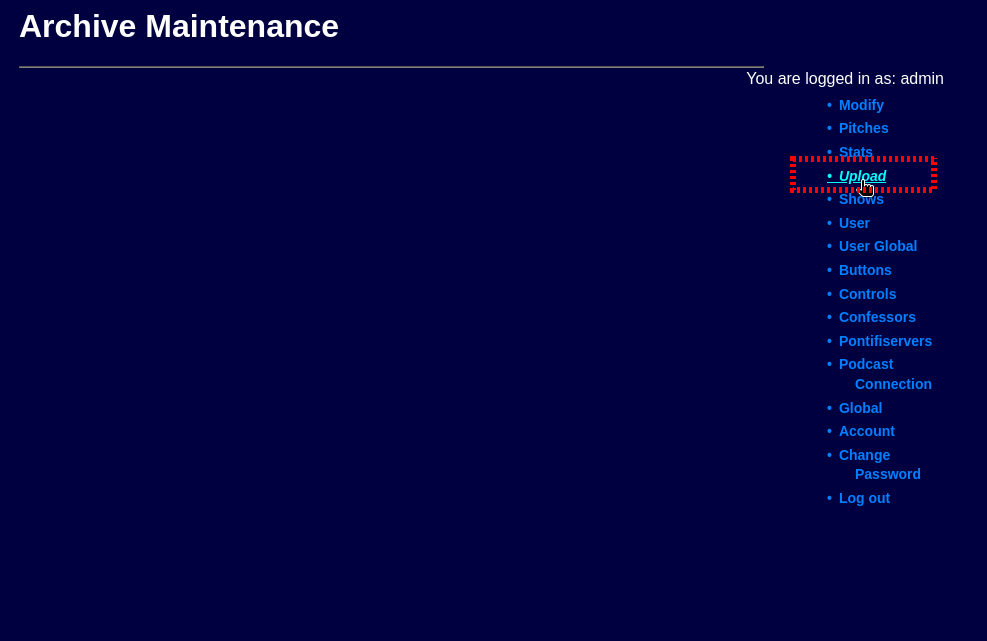 |
| Uploading a replacement audio file |
- using the dropdown menus, pick the show and the instance (date/time)
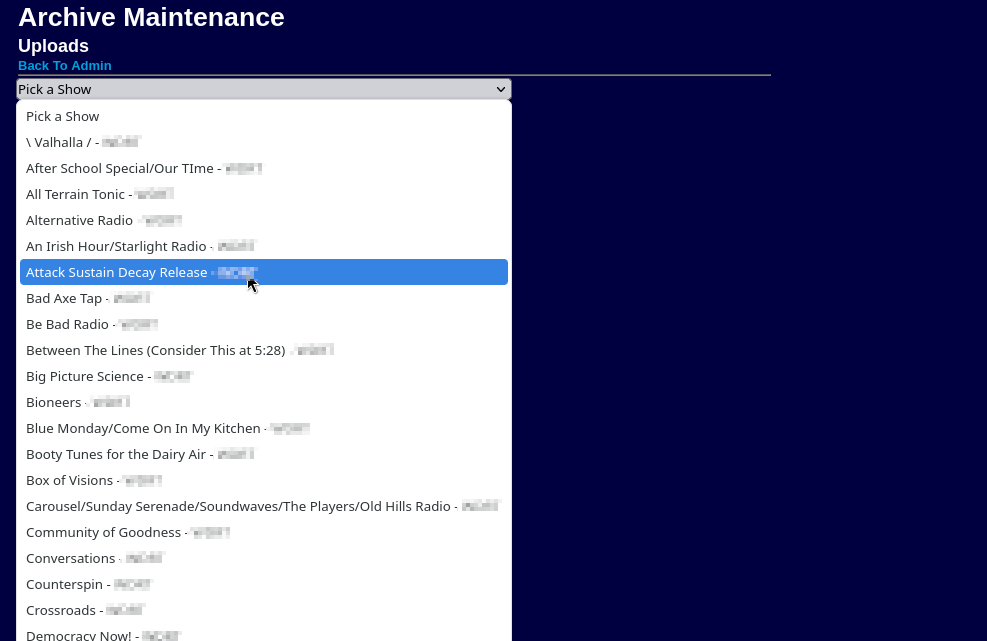 |
| Picking a show from the dropdown |
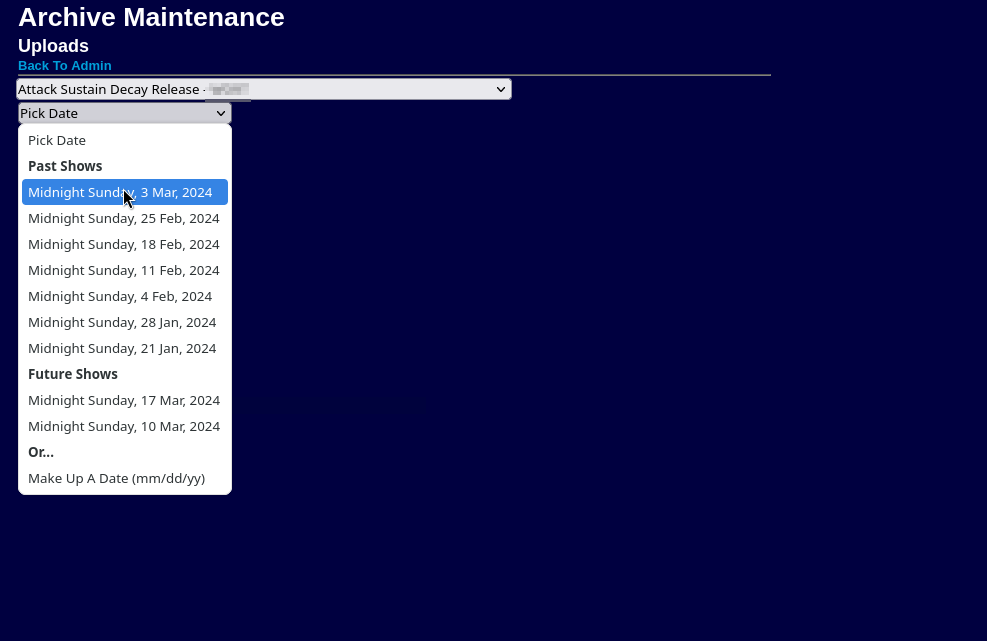 |
| Picking a show date from the dropdown |
- either drag the file to the box that says
or drop file hereor clickBrowseand find the file on your local computer
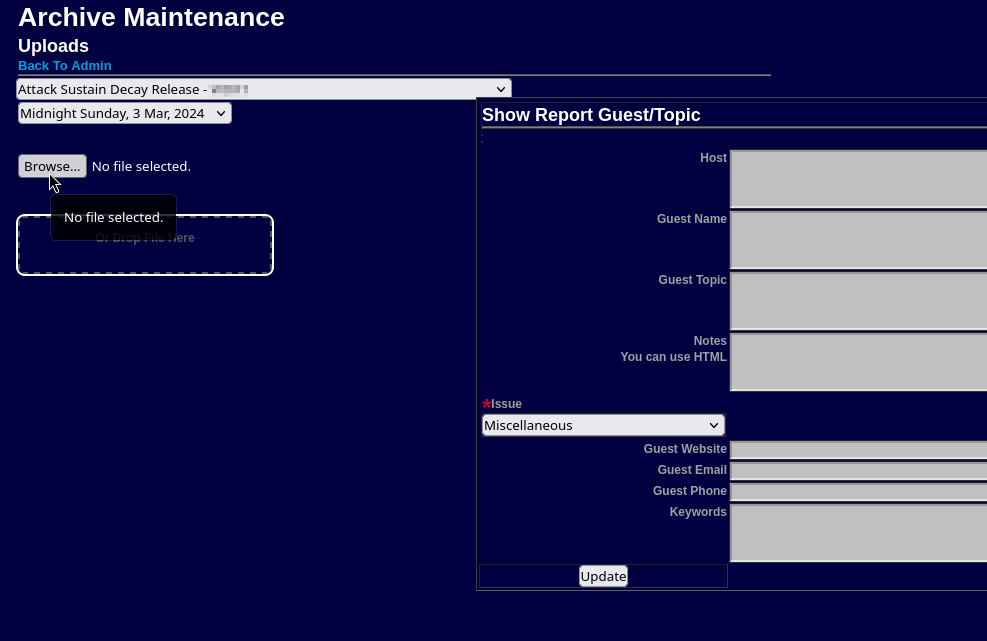 |
| Browse for a local audio file |
After the upload is complete, you are presented with a preview page. You can
play the new audio file and choose another if you need to, or click Back to
Admin to return to the Archive administrative menu.
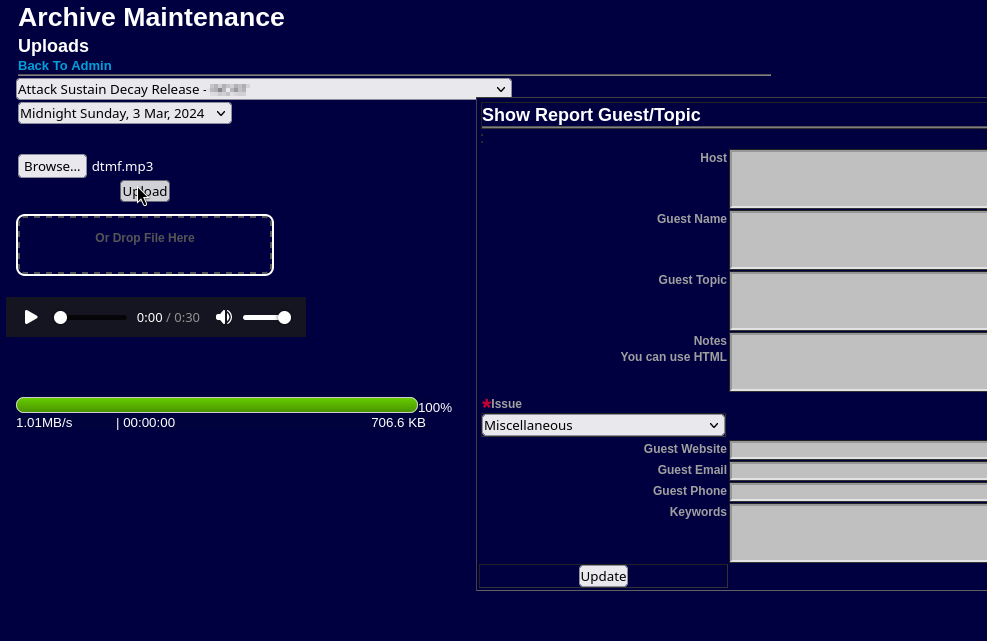 |
| Preview the audio |
The area to the right labeled Show Report Guest/Topic is for the Public File entry. You can ignore everything here if you're not entering data for the public file. In which case DO NOT click the Update button.